Maybe if happened many a times that you heard the word “LinkedIn” but didn’t paid the attention It must be uttered by your colleagues at work or spoken by a friend who’s on the hunt for a new job. And if still you are unaware of LinkedIn then you must read this blog and upgrade yourself for your new beginnings and career growth.
There is no doubt LinkedIn being one of the most popular social platform but still a huge amount of people don’t have an idea of what exactly it is and how to use it for your benefit.So, here are all the questions which must be going through your mind all these days like a roller coaster and you need to know about it. So, follow us with these questions:

Q What Is LinkedIn and Why Should You Be on It?
► Simply, LinkedIn is a social network for professionals. It’s like Facebook for your career. It is designed for career and business professionals to connect with other professionals and search the information about certain person or company you want to. Companies can post their current job vacancies and hire employees, or another scenario is job seekers can search their compatible jobs on it.
Q Then what is the difference between Other Social Networking Sites and LinkedIn?
► Unlike other social networking sites which allows you to become “friends” with anyone and everyone, LinkedIn is all about building strategic relationships with colleagues and co-workers and these are called connections. It doesn’t matter how many numbers of connections anyone has, it’s not quantity but quality which matters more. In fact, LinkedIn stops showing your actual number of connections once it reached 500 connections.
► It starts by connecting with those people you know and who know you, and through it the purpose of gaining resources can be achieved, hence building a large network.
Q How to create an account on LinkedIn?
► From Beginner to All-Star in 9 easy steps!
Create a compelling and professional LinkedIn profile by following these steps:
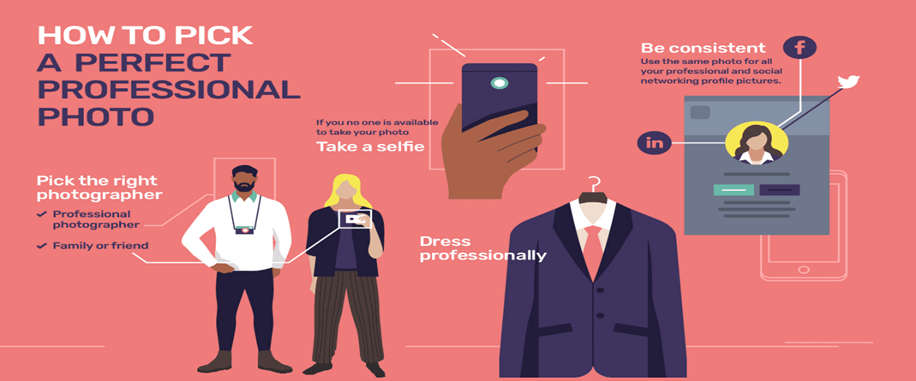
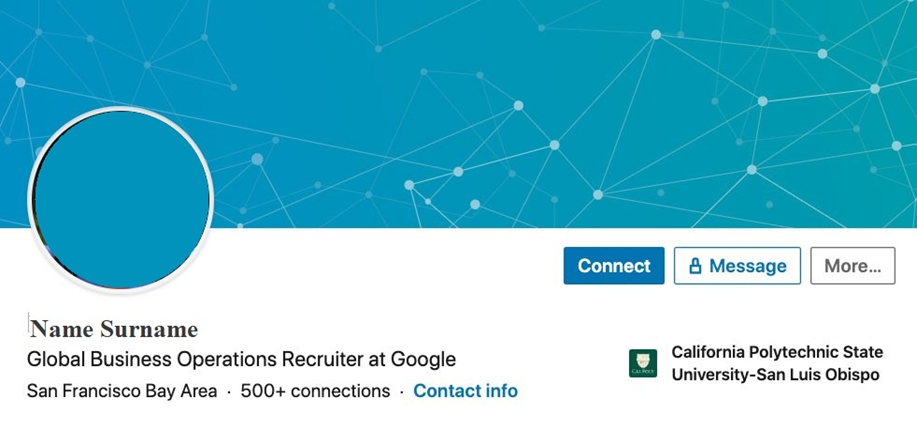
· Step 1: Upload a professional photo
A photo increases profile views 14X. Beyond views though, your photo is your first impression. As they say: a good picture is worth 1000 words.
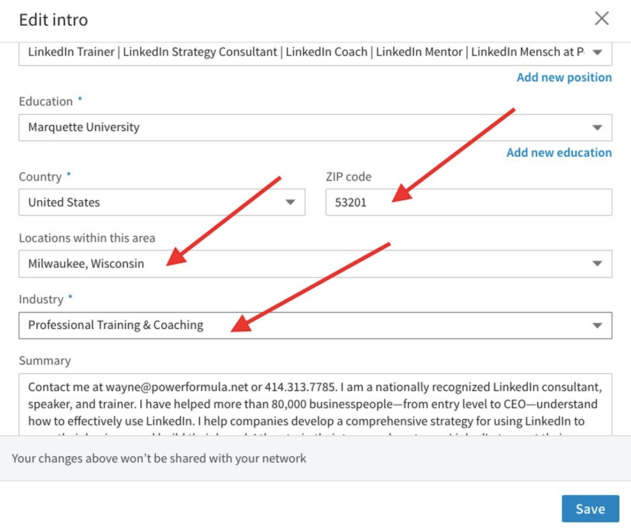
· Step 2: Add your Industry and Location
It is important to specify your industry and location as these are two of the most important filters recruiters use.
· Step 3: Customize your LinkedIn URL
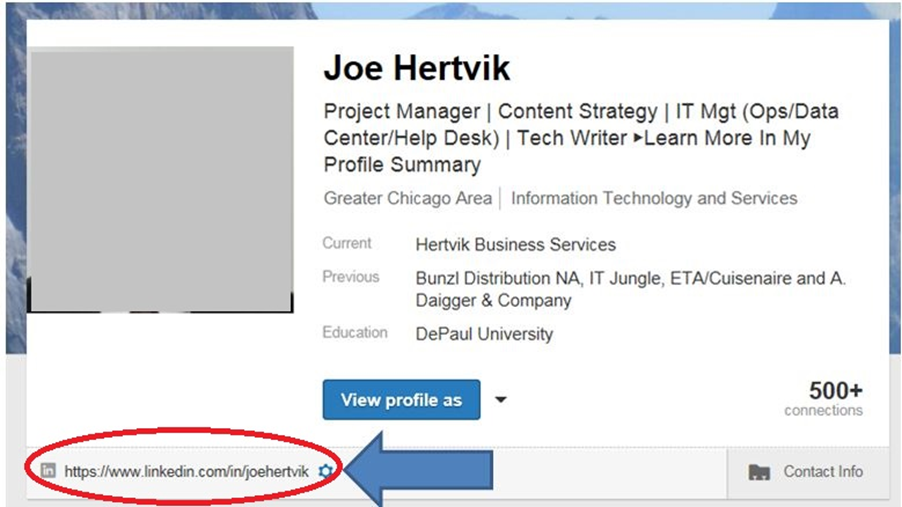
If you have a LinkedIn account, then you have your own unique internet-address called a URL. This address is what browsers use to find you on the internet out of the other 500M LinkedIn members. Your address is unique to you and if you haven’t customized it will likely consist of your first and last name followed by numbers, letters, and dashes. Something like:
https://ca.linkedin.com/in/yourid and then display it on your resume, business cards, e-mail signature, etc. To do this click on “Edit your public profile”.
· Step 4: Write a summary
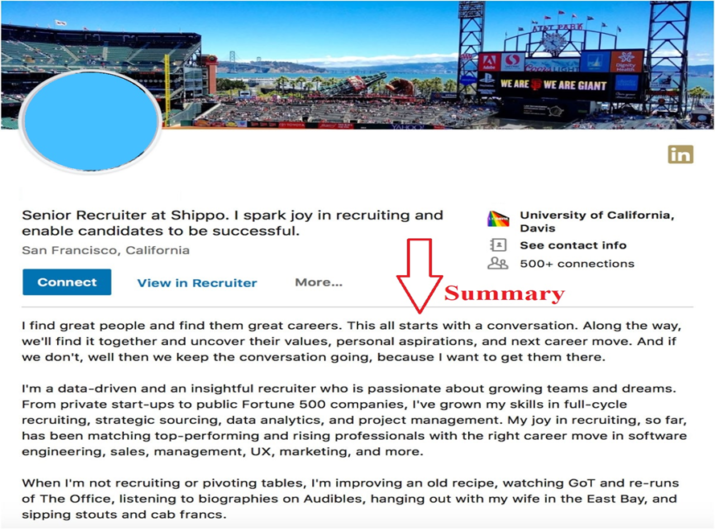
Immediately below your picture, name, location, company and school you have the opportunity to write a summary about yourself. This is a great opportunity to communicate your brand, as well as, use several of your key words. As a starting point I recommend to my clients that they cut and paste the profile statement from their resume.
· Step 5: Describe your experience
Originally the coaching on completing the Experience section was to write high-level summaries of your current and past roles. This made sense to me until I came across research on “keyword density” which is fancy-speak for the number of times your keywords are repeated in your profile. For example, if the word “accountant” appears 3 times throughout your profile, and 37 times throughout mine then I’m going to score much higher in a search for an accountant. In live workshops, most of my clients seem to dislike this fact as much as I do. It seems cheap and gimmicky. As a job seeker, we want to be found for our skills and abilities, not for something as trivial as repeating keywords. But the reality is that when job seekers apply for advertised work, they often have to pass 3 challenges.
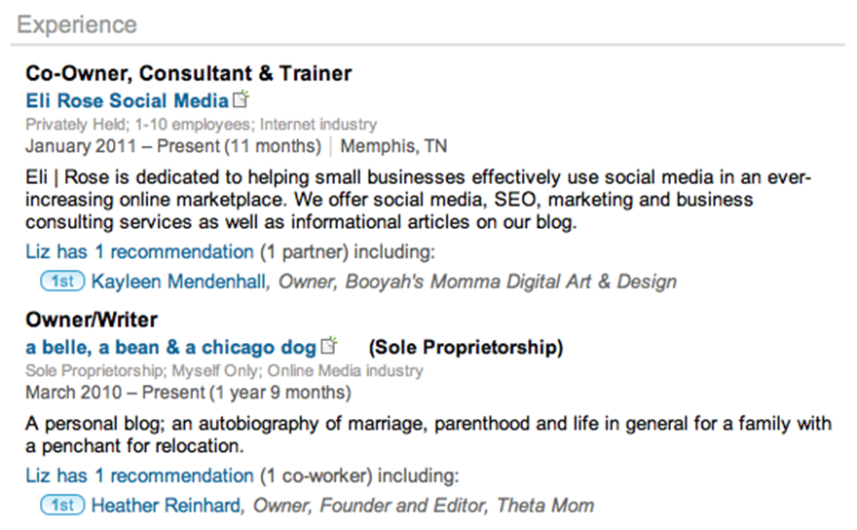
The first challenge is a computer: Computers aren’t smart enough to distinguish between the nuances of sentences so instead they just look for keywords and count them.
The second challenge is to be selected by a HR professional or recruiter for an interview. Recruiters can sift through hundreds, sometimes thousands, of potential candidates to find a couple of top contenders so the key is to make your writing interesting and worth their time. They want to get a complete picture of who you are and what you are capable of. To satisfy recruiters, it is important that you cover 3 areas: Context, Actions and Results.
The final challenge is to convince the hiring manager to meet you: Generally speaking, hiring-leaders are only presented with a couple of potential top candidates so many of them prefer a fair bit of detail both technical and soft-skills. If you pass all these challenges, then you’ll be asked to interview.
· Step 6: Add 5 Skills or more
You can list up to 50 skills on LinkedIn and I strongly recommend you strive to list 40-50. Simply put, the more skills you list the better your chances for coming up as a top match for different roles. The easiest place to start is with your keywords. Many of them should describe critical skills you can perform. It is important to consider all the ways that different companies describe your skills, for example if one company calls one of your skills “sales” and other calls it “business development”, then list both. You never know what search terms a recruiter is going to favour so cover all your bases.
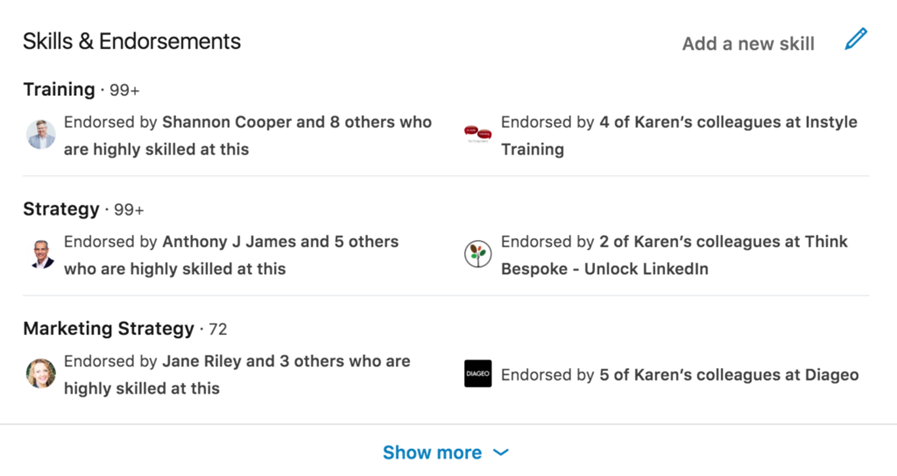
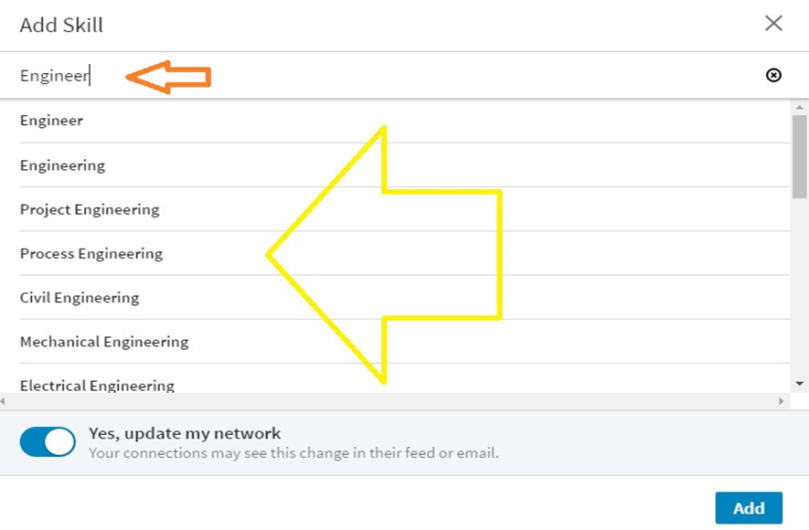
To add, delete, move or in general manage your skills section click on the “Add a new skill” link in the top right-hand corner of the Skill section as shown by the yellow arrow above. Deleting a skill is as simple as clicking on the blue crayon like symbol to the right of “Add a new skill”. You can delete a skill by clicking on the X to the left of it as per the orange arrow below. You can also change the order of your skills by clicking on the 4 horizontal lines as per the yellow arrow below and then moving the skill up or down as desired.
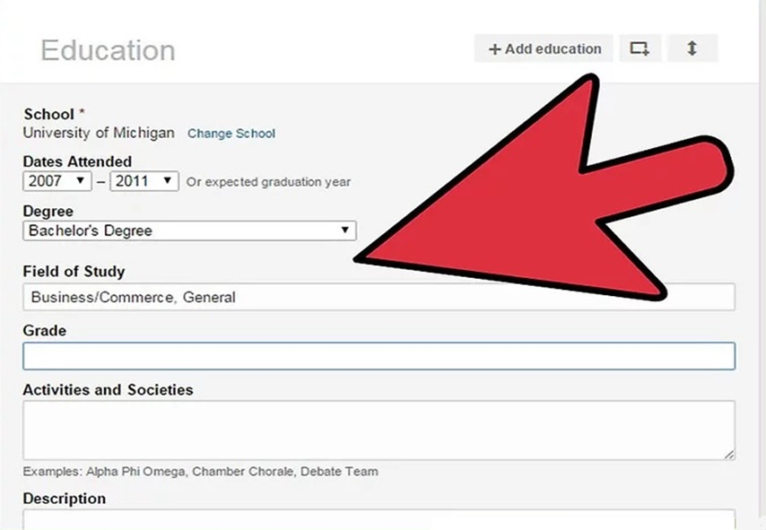
· Step 7: List your education
This step is straightforward. A couple of tips:
1. As you start to write out your school’s name look at the drop-down menu and click on your university to get the logo besides the name. Logos add visual appeal and credibility. This tip applies equally to your Experience section assuming your current or past company has a company page on LinkedIn.
2. List specializations that help you feature (repeat) your keywords.
· Step 8: Connect with 50+ contacts
LinkedIn will “officially” display your number of connections up to 500+.
Here are some ways to start building your network:
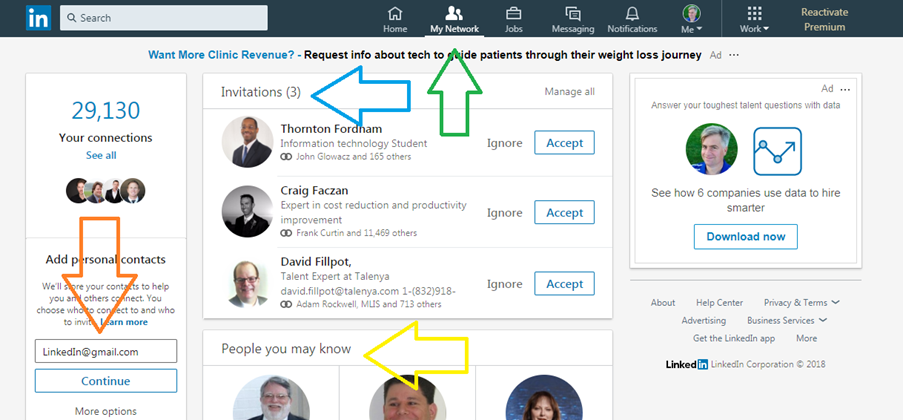
1. Near the top of the page click on “My Network” as per green arrow below.
2. If you have Gmail, Yahoo! Mail or Hotmail email accounts, then you can give LinkedIn permission to sync with your email address book by clicking on the appropriate link shown with the orange arrow below. LinkedIn will look for email addresses of people in your directory who already are on LinkedIn.
You can accept invitations from people asking to connect with you, see blue arrow below. When it comes to building your network there are two philosophies, conservative and liberal (and this has nothing to do with political preferences).
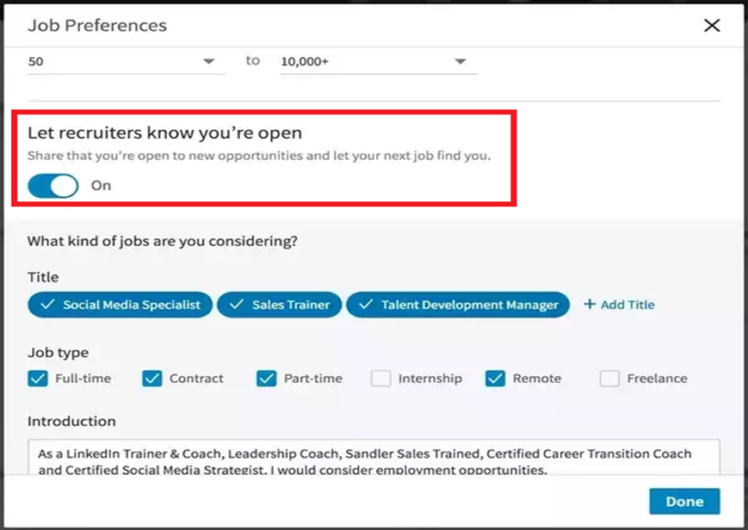
· Step 9: Turn ON “Let recruiters know you’re open”
If you are updating your LinkedIn profile because you are searching for work then you want to let recruiters know you are looking. There are many wrong ways to do this like advertising “Currently seeking new opportunities” in your headline or other places in your profile not intended for this. The best way to do it is here. First click on “Jobs” and then “Career interests”
Q What are the Main Features of LinkedIn?
► So, here are some of the basic features:
· Home: Once you’ve logged in to LinkedIn, the home feed is your news feed, showing recent posts from your connections with other professionals and company pages you’re following.
· Profile: Your profile shows your name, your photo, your location, your occupation and more right at the top. Below that, you have the ability to customize various different sections like a short summary, work experience, education and other sections similarly to how you might create a traditional resume or CV.
· My Network: Here you’ll find a list of all the professionals you’re currently connected with on LinkedIn. If you hover your mouse over this option in the top menu, you’ll also be able to see a number of other options that will allow you to add contacts, find people you may know and find alumni.
· Jobs: All sorts of jobs listings are posted on LinkedIn everyday by employers, and LinkedIn will recommend specific jobs to you based on your current information, including your location and optional job preferences that you can fill out to get better-tailored job listings.
· Interests: In addition to your connections with professionals, you can follow certain interests on LinkedIn as well. These include company pages, groups according to location or interest, LinkedIn’s SlideShare platform for slideshow publishing and LinkedIn’s Lynda platform for educational purposes.
· Search bar: LinkedIn has a powerful search feature that allows you to filter your results down according to several different customizable fields. Click “Advanced” beside the search bar to find specific professionals, companies, jobs and more.
· Messages: When you want to start a conversation with another professional, you can do so by sending them a private message through LinkedIn. You can also add attachments, include photos and more.
· Notifications: Like other social networks, LinkedIn has a notification feature that lets you know when you’ve been endorsed by someone, invited to join something or welcomed to check out a post you might be interested in.
· Pending Invitations: When other professionals invite you to connect with them on LinkedIn, you’ll receive an invitation that you’ll have to approve.
These are the main features you’ll first notice when you get on LinkedIn and sign up for a Basic account, but you can dive deeper into some of the more specialized details and options by exploring the platform yourself. You might even find that you’d be interested in using LinkedIn’s Business Services and/or Premium account upgrades, which allow users to post jobs, take advantage of talent solutions, advertise on the platform and expand your sales strategy to include social sales on LinkedIn
Lastly, some tips for getting success in LinkedIn:
Make good use of your headline: Do not accept the default “job title and company name” suggestion. Use the 120 characters available to explain what your company does and how you can help. Your LinkedIn headline accompanies every piece of activity that people see on LinkedIn, so make it clear who you are and what you do.
List 50 skills: Whatever you might think about LinkedIn endorsements, the skills you list are an important part of getting your profile found. People search for skills, so make sure you list the things you do (and want to do). These skills should also appear in the other sections of your profile – such as headline, summary and experience descriptions. You can list up to 50 skills.
Plan your approach to connecting: Think carefully about who you want to connect with. When you receive a connection request from a business contact, accept and send a thank you message. If you’re not sure about accepting, then reply, but don’t accept yet… and send a message to find out more information.
If you send an invitation to connect, always personalise it with a short message.